



A tag manager separates two things: the website only loads a container, and what happens inside it is defined in Matomo. New events, a goal or a changed privacy switch no longer need a change to the source code. Matomo Tag Manager covers much of what you know from Google Tag Manager. The difference: it runs in your Matomo instance, and the data stays there.
The four building blocks
| Building block | Question | Example |
|---|---|---|
| Container | Where? | one website, one file container_AbC123xY.js |
| Tag | What happens? | Matomo counts a page view or an event |
| Trigger | When? | page view, click on a download, form submit |
| Variable | With which values? | page URL, click text, a value from the data layer |
A tag fires as soon as one of its triggers applies. Variables supply the values a tag needs and narrow down triggers, for example “All Links Click when the Click Destination URL contains /contact/”. In the form you refer to a variable with double curly braces, for example {{PageUrl}}.
One variable is special: Matomo Configuration. It holds the address of your instance, the site ID and all settings on cookies and consent. Every tag of type Matomo Analytics uses it. Which switches matter there for cookies is described under Matomo cookies.
Embedding the container
Under Install Code, Matomo shows the embed code for each environment. It belongs as high up as possible in the <head> of every page:
<!-- Matomo Tag Manager -->
<script>
  var _mtm = window._mtm = window._mtm || [];
  _mtm.push({'mtm.startTime': (new Date().getTime()), 'event': 'mtm.Start'});
  (function() {
    var d=document, g=d.createElement('script'), s=d.getElementsByTagName('script')[0];
    g.async=true; g.src='https://matomo.example.com/js/container_AbC123xY.js'; s.parentNode.insertBefore(g,s);
  })();
</script>
<!-- End Matomo Tag Manager -->
Matomo writes the container file into its js/ directory when you publish. It needs write access there, and the system check reports it if that is missing. For Live the file is called container_ID.js. For other environments Matomo adds a random part, so that nobody can guess the address of the staging version.
When you switch, remove the previous Matomo tracking code. If both run, every page view counts twice.
Triggers: when a tag fires
Matomo groups the triggers into four sets: clicks, the page view in three stages, user engagement such as scroll depth, the visibility of an element or a form submit, and others such as timer, JavaScript errors and custom events from the data layer.
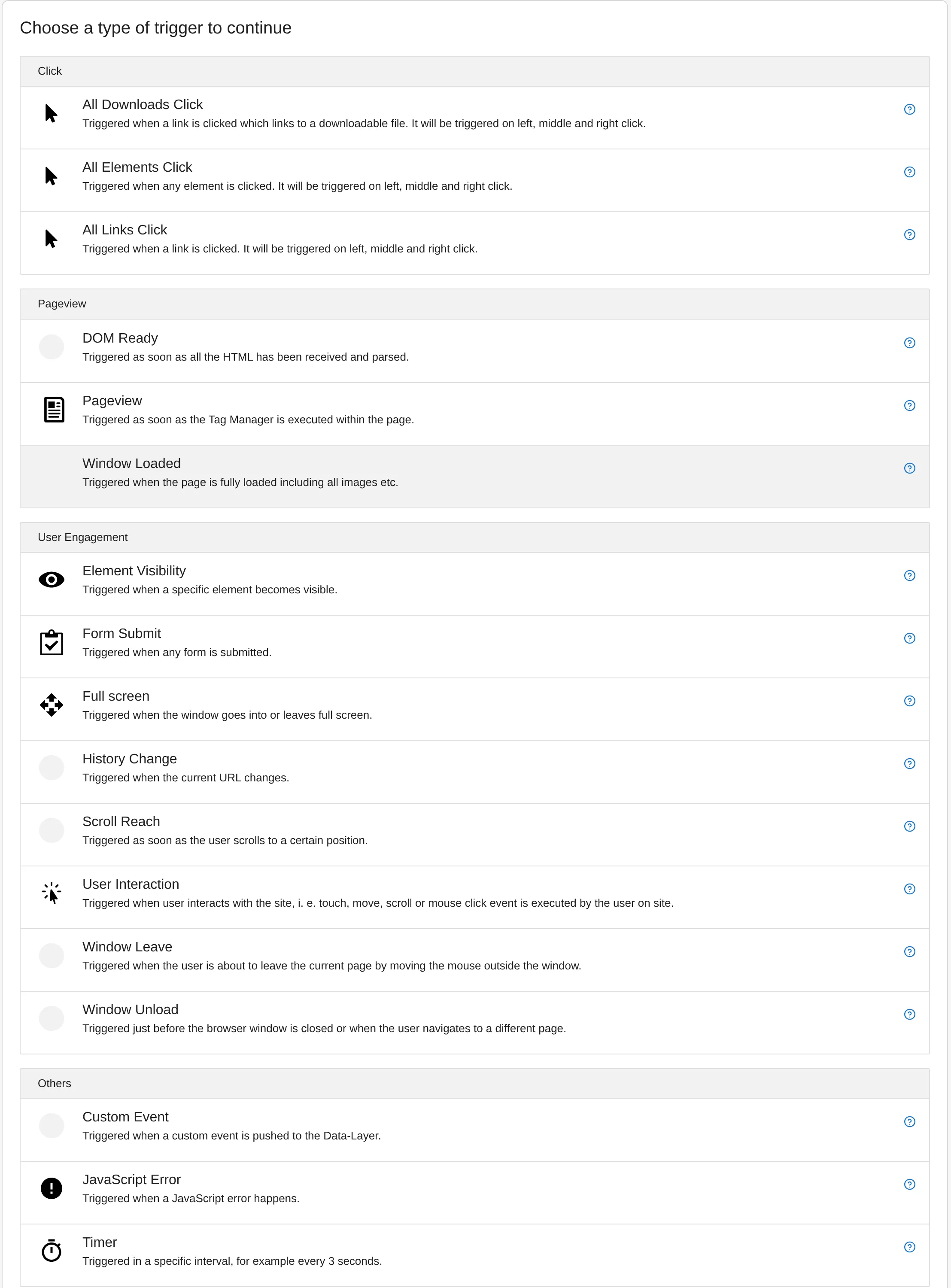
For the page view, the difference matters: Pageview fires as soon as the container runs, DOM Ready when the HTML is complete, Window Loaded only after all images. For the Matomo tag, Pageview is enough. Tags that access elements of the page are better off waiting for DOM Ready.
Click triggers on CSS classes are quick to build and break at the next relaunch. For everything that counts, such as a sent enquiry or a purchase, the data layer is more robust.
Variables
Dozens of variables are preconfigured, for example Page URL, Click Text or scroll depth. Your own variables read cookies, URL parameters, meta tags, elements of the page or the data layer. In a tag you always refer to the name the variable has in the Tag Manager, for example {{Order revenue}}.
The data layer
A data layer is a hand-over tray between your website and the Tag Manager. The website puts down what it knows: what kind of page is being shown, what the visitor has just done and which values belong to it. The Tag Manager reads from it and decides what happens. Technically it is a JavaScript array; in Matomo Tag Manager it is called _mtm, in Google Tag Manager dataLayer.
The gain is the division of labour: development defines once which information the website reports. What of it ends up in Matomo, as an event, goal or dimension, you decide afterwards in the Tag Manager, without a new release of the website.
| What you want to measure | Without a data layer | With a data layer |
|---|---|---|
| Enquiry sent | click on “Send”, even if the form reports an error | event only after a successful submission |
| Revenue of an order | read from the text of the confirmation page | handed over as a number |
| Type of page | guessed from the URL | set by the CMS, for example “product” or “guide” |
| After a relaunch | selectors and texts no longer match | measurement keeps working as long as the website writes the same entries |
How it works
- Every entry is an object of names and values:
{ pagetype: 'product' }. - An entry with
eventis an event. Triggers of type Custom Event react to this name. Entries withouteventonly set values. - New values replace old ones. If the page writes the same name again later, the new value applies, for an object the whole new object.
- Nested values are read with a dot. If the data layer holds
{ order: { revenue: 129.9 } }, a variable of type Data-Layer with the nameorder.revenuereads the amount. - Nothing is lost just because the container loads later. What the page writes into
_mtmbeforehand, the container processes as soon as it is there. - It only lives as long as the page. On the next page view it starts empty. It sends nothing by itself: only a tag determines which value goes to Matomo.
Personal data does not belong in it, so no names, email addresses or customer numbers. Every script on the page can read the data layer, including that of a chat or advertising service.
Example 1: information about the page
The CMS writes on every page what kind of page it is, before the embed code of the container:
<script>
  window._mtm = window._mtm || [];
  window._mtm.push({ pagetype: 'product', section: 'outdoor', loggedin: 'yes' });
</script>
<!-- followed by the embed code of Matomo Tag Manager -->
In the Tag Manager you create a variable of type Data-Layer with the name pagetype and add it in the Matomo Analytics tag under Custom Dimensions, together with the index of a dimension you created in Matomo beforehand. Matomo then shows, for example, how many visits come through guides and how many through product pages.
Example 2: enquiry sent successfully
The contact form only reports once the server has accepted the enquiry:
window._mtm = window._mtm || [];
window._mtm.push({ event: 'enquiry-sent', form: 'contact' });
In the Tag Manager you set up three things:
- A trigger Custom Event with the event name
enquiry-sent. - A variable of type Data-Layer that reads the value
form. Call it “Form”, for example. - A tag Matomo Analytics with the tracking type Event, category
Form, actionsentand{{Form}}as the name. If the enquiry should count as a goal, choose the tracking type Goal instead.
If the website has several forms, the same setup is enough: each one writes its own name into form.
Example 3: purchase with revenue
The shop’s confirmation page reports the order:
window._mtm = window._mtm || [];
window._mtm.push({
  event: 'purchase',
  order: { revenue: 129.9, payment: 'invoice', newcustomer: true }
});
A variable of type Data-Layer with the name order.revenue is called “Order revenue” in the Tag Manager. The Matomo Analytics tag with the tracking type Goal enters {{Order revenue}} as the revenue. The format matters: a number with a decimal point, without currency sign and without thousands separator.
That way a purchase counts as a goal with revenue. For full ecommerce tracking with cart, items and order number, the Matomo tag has no tracking type of its own. For that, the ecommerce functions of the tracker are called, also with values from the data layer. That is best defined in the tracking concept.
Example 4: page changes in a web app
If an application loads new content without reloading the page, Matomo at first only sees the first view. The trigger History Change detects when the URL changes. It gets more precise when the app itself reports as soon as content and title are in place:
window._mtm = window._mtm || [];
window._mtm.push({ event: 'page-change', page: { path: '/pricing/', title: 'Pricing' } });
A trigger Custom Event on page-change starts a Matomo Analytics tag with the tracking type Pageview. Under Custom URL and Custom Title you enter the variables for page.path and page.title.
Preview, versions and environments
Changes go into the draft first. Nothing goes live before you publish a version. The way there:
- Switch on Preview / Debug. Enter the address of the page you want to test. Matomo opens it with the parameter
mtmSetDebugFlag=1. It sets a cookie in this browser for seven days: the website then loads the draft instead of the live version and shows a debug window with tags, triggers and variables. All other visitors keep seeing the live version.mtmSetDebugFlag=0removes the cookie again. - Create a version. A version freezes the state. Briefly describe what changes, and publish it to staging or dev first if you have such environments.
- Publish to Live. If something goes wrong, simply publish the previous version to Live again.
Two things are worth knowing: according to Matomo, the names of tags are publicly visible while the preview is on. And the preview file has no random part in its name. Internal abbreviations, customer names or even keys therefore do not belong in a container.
Super users add further environments under Administration > General Settings. Versions can also be exported as JSON and imported again, for example as a backup or to move a container to another Matomo instance.
How often a tag fires
In a tag’s advanced settings you define how often and when it may fire:
- Fire limit: Unlimited, Once per pageview, Once per 24 hours or Once in lifetime.
- Fire delay in milliseconds, so that a tag does not get cut off when the page redirects right away.
- Priority: the lower the number, the earlier a tag fires when several are due at the same time. The default is 999.
- Start date and End date, for example for a pixel that should only run during a campaign.
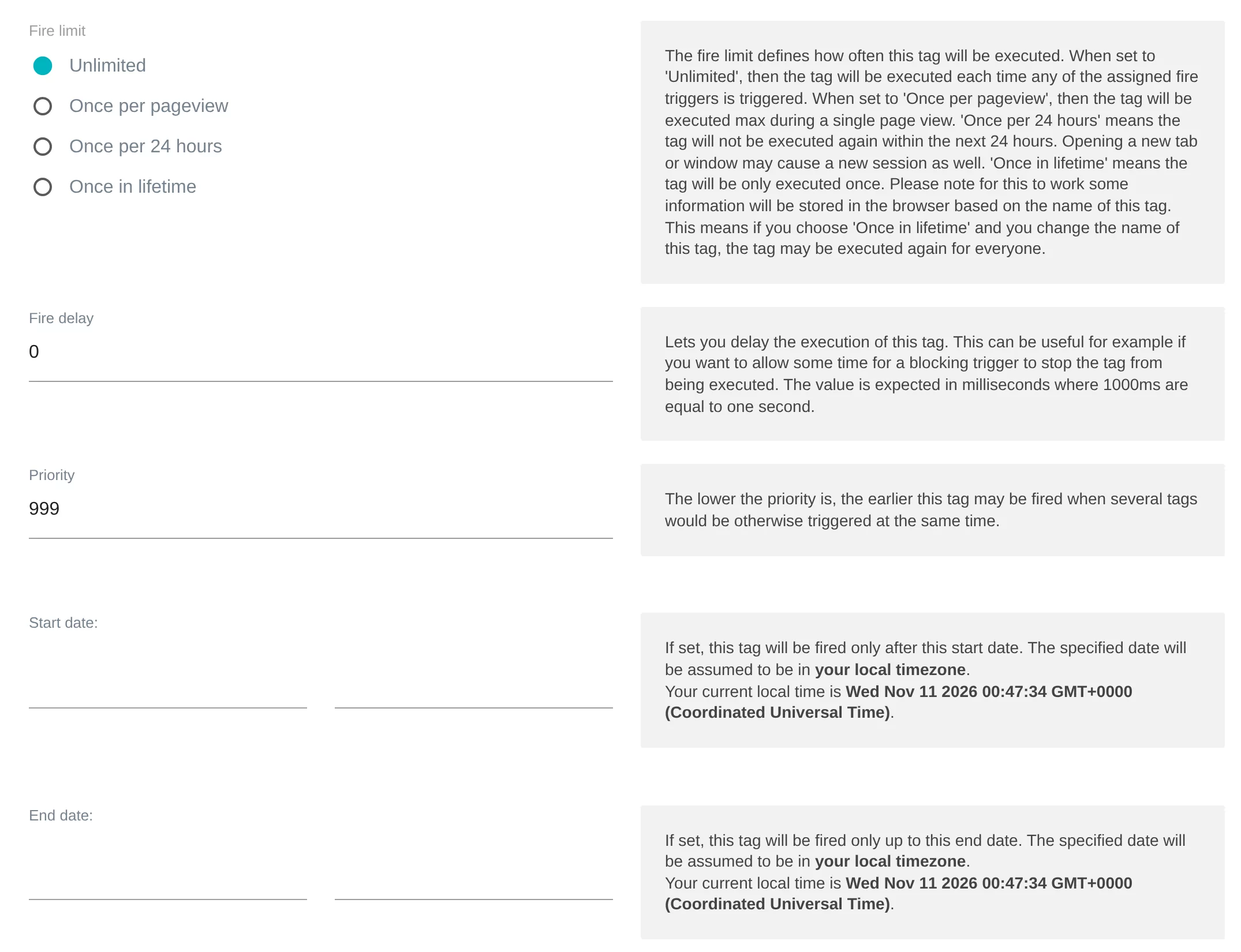
“Once per 24 hours” and “Once in lifetime” work because the Tag Manager remembers in the browser’s local storage that a tag has already fired. That is an access to the device, even without a cookie. Clarify with your data protection adviser whether that is acceptable without consent. With “Unlimited” and “Once per pageview”, the Tag Manager stores nothing for this.
Consent and consent tools
Consent concerns two levels. For Matomo itself, you control in the Matomo Configuration variable whether, without consent, it measures without cookies or not at all. As soon as your consent tool reports consent, you call rememberCookieConsentGiven or rememberConsentGiven, as Matomo describes in the help for these fields.
For services from other providers, your tag only fires once consent is there. The cleanest way to build that is through the data layer. On consent, the consent tool writes an event, for example consent-marketing, and only this trigger starts the tags concerned. For Axeptio, CookieYes, Cookiebot and OneTrust, the Tag Manager comes with templates that embed the respective tool, plus one for Google’s consent mode.
Permissions: who may do what
Users with write access to the website can use the Tag Manager. Two capabilities cover the sensitive parts:
- Publish Live Container: only site admins and users with this capability may publish to Live. That way others can prepare drafts and test them in staging without going live.
- Use Custom Templates: Custom HTML and variables with your own JavaScript run arbitrary code on your website. Matomo itself warns that this can be misused, for example to steal sensitive data. Under Restrict usage of custom templates, super users can limit them to admins or super users or switch them off entirely.
Moving from Google Tag Manager
Matomo does not take over a container from Google Tag Manager automatically. That is less bad than it sounds: a move is the opportunity to sort out old tags and name everything consistently. What can stay is your data layer. By default, Matomo Tag Manager also reads the values that are already in the Google Tag Manager data layer. Since Matomo 5.2 there is also the option Actively synchronise from the Google Tag Manager data layer: then entries written to dataLayer later also arrive. If you do not want that, switch on Ignore Google Tag Manager data layer. Both containers can run in parallel for a while until the numbers match. How I support such a move is described under Matomo Tag Manager.
Sources
As of 11 November 2026