



Matomo has dozens of reports. In everyday work, though, hardly anyone looks at all of them: management wants to know whether enquiries are growing, marketing which campaign pays off, the editorial team which content gets read. A dashboard brings together exactly the reports a group needs regularly, on one page and for the selected period.
What a dashboard is in Matomo
A dashboard is a collection of widgets. Almost every report can be added as a widget, as a table or a chart, plus special widgets such as the visitor map or visits in real time. Three things are worth knowing:
- Dashboards belong to the user. Each person has their own dashboards, and a dashboard applies to all websites: whoever switches websites sees the same widgets with the numbers of the new website.
- Period and segment come from the top. The selection above the dashboard applies to all widgets at once.
- A user can have several dashboards, for example one for the weekly overview and one for a running campaign. They appear in the menu under “Dashboard”.
Setting up a dashboard
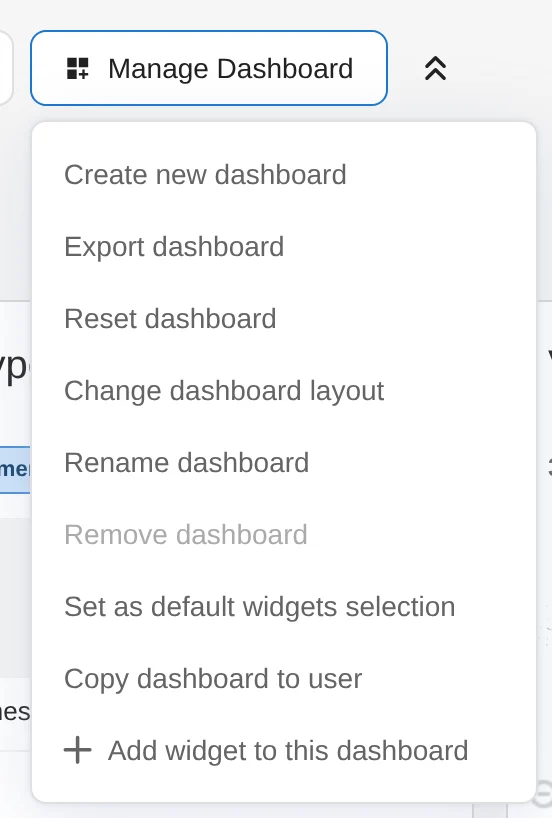
Everything important is in the “Manage Dashboard” menu above the dashboard:
- Create new dashboard, empty or starting from the default widget selection.
- Add widgets with “Add widget to this dashboard”. A preview shows the widget before it lands on the dashboard.
- Choose a layout under “Change dashboard layout”: nine arrangements, from one wide column to four equal columns.
- Arrange by drag and drop. Each widget can be minimised, maximised or removed, and tables and charts can be shown in whichever visualisation fits best.
- Name it with “Rename dashboard”, so it is clear what it is for.
One dashboard per audience
Different people ask different questions. Instead of one dashboard with everything, a small dashboard of its own per audience is worth it. For example:
| Audience | Questions | Suitable widgets |
|---|---|---|
| Management | Are enquiries and revenue growing? | Visits and goals over time, goals, ecommerce |
| Marketing | Which channels and campaigns pay off? | Channel types, campaigns, goals by channel |
| Editorial | What is read and searched for? | Entry pages, page titles, site search keywords |
| Tech | Does tracking work, is the website fast? | Visits in real time, page load times, devices and browsers |
Which metrics belong on it is a question for the tracking concept: only when goals, channels and campaigns are defined cleanly does a dashboard show numbers you can rely on. How campaigns arrive correctly is covered in Campaign tracking, how events become goals in Event tracking.
A default for new users
Whoever logs in for the first time gets the default widget selection. A super user can define it: they build a dashboard the way new users should see it and choose “Set as default widgets selection”. This selection and the column layout then apply to every new dashboard and to “Reset dashboard”. Existing dashboards stay as they are.
Passing on dashboards
Because dashboards belong to the individual user, passing them on needs a way of its own. There are three:
- Copy. “Copy dashboard to user” creates a copy for another user. That needs admin rights, and the copy is a snapshot: if you change the original later, none of it arrives.
- Share. With the free plugin Feinwerk Dashboard Sharing, other users see your dashboard read-only and always in your current version. Any logged-in user with access to the website can share, without admin rights.
- Embed. For people without a Matomo login, a widget or the whole dashboard can be embedded as an iframe, for example on an intranet. The code for it is in the administration under Platform, “Widgets”.
Embedding: what matters about the token
An embedded widget signs in with a token that is part of the iframe’s address. Matomo sets two rules for it:
- View access only. In an iframe, Matomo refuses tokens of users who have write or admin rights. So create a user of its own who may only view the website in question, and use that user’s token.
- Usable in an address. The token must not have been created with the option “Only allow secure requests”, because such tokens do not work in an address.
One more thing often surprises people: the embedded dashboard is that of the user the token belongs to, not yours. So set the dashboard up for that user, for example with “Copy dashboard to user”, and remember to renew the copy after changes.
From Matomo 6 on, you can set the highest permission a token may use when you create it, for example only “view”. Such a token can then only read, even for an administrator, and Matomo accepts it in an iframe. In our test with Matomo 6.0.0-rc1, Matomo refused an administrator’s token, while a token of the same account at the “view” level embedded that account’s own dashboard, without any copy. The level applies, however, to all websites the user may see. If an embedded dashboard should show only one website, a user of its own with view access to that website remains the cleaner way.
Whoever knows the token sees the data. A publicly reachable iframe is therefore effectively public. If a dashboard really should be visible to everyone, it is more honest to give the anonymous user view access to that website. For anything internal, the iframe belongs on a page behind a login.
Segments on the dashboard
The segment you select at the top of the dashboard filters all widgets at once. Mixed dashboards are not possible that way, for example one that shows all visits on the left and only those from paid campaigns on the right. If you need that, Matomo alone means maintaining two dashboards.
From dashboard to email report
Not everyone opens Matomo. For those who prefer their numbers in their inbox, the Manage Dashboard menu has the item “Export dashboard”: in current versions (Matomo 5.14 and 6) it creates a new email report with the reports of the widgets already selected. Then all that is missing are the recipients, the format and the schedule.
A good dashboard
- has one audienceand answers its recurring questions.
- is smallA few widgets, each with a clear purpose.
- shows reliable numbersGoals, channels and campaigns are defined cleanly.
- is maintainedWhatever nobody needs any more goes.
Typical pitfalls
- One dashboard for everyoneEveryone searches for their numbers among everyone else’s.
- Copies that go staleA copy misses every later change.
- An admin token in an iframeMatomo refuses it, and it does not belong there anyway.
- One segment for everythingWithout a plugin, the segment applies to every widget.
Sources
As of 12 November 2026, Matomo 5.14 and 6.0.0-rc1